Empryo Integration
Connect Empryo’s desktop app and terminal UI to LLM Gateway or DevPass, choose a model, and run a coding task.
Empryo is a coding agent with a desktop app, terminal UI, and headless CLI. LLM Gateway is built in to both interactive interfaces. Connect with browser login or an existing API key, then choose a model for your project.
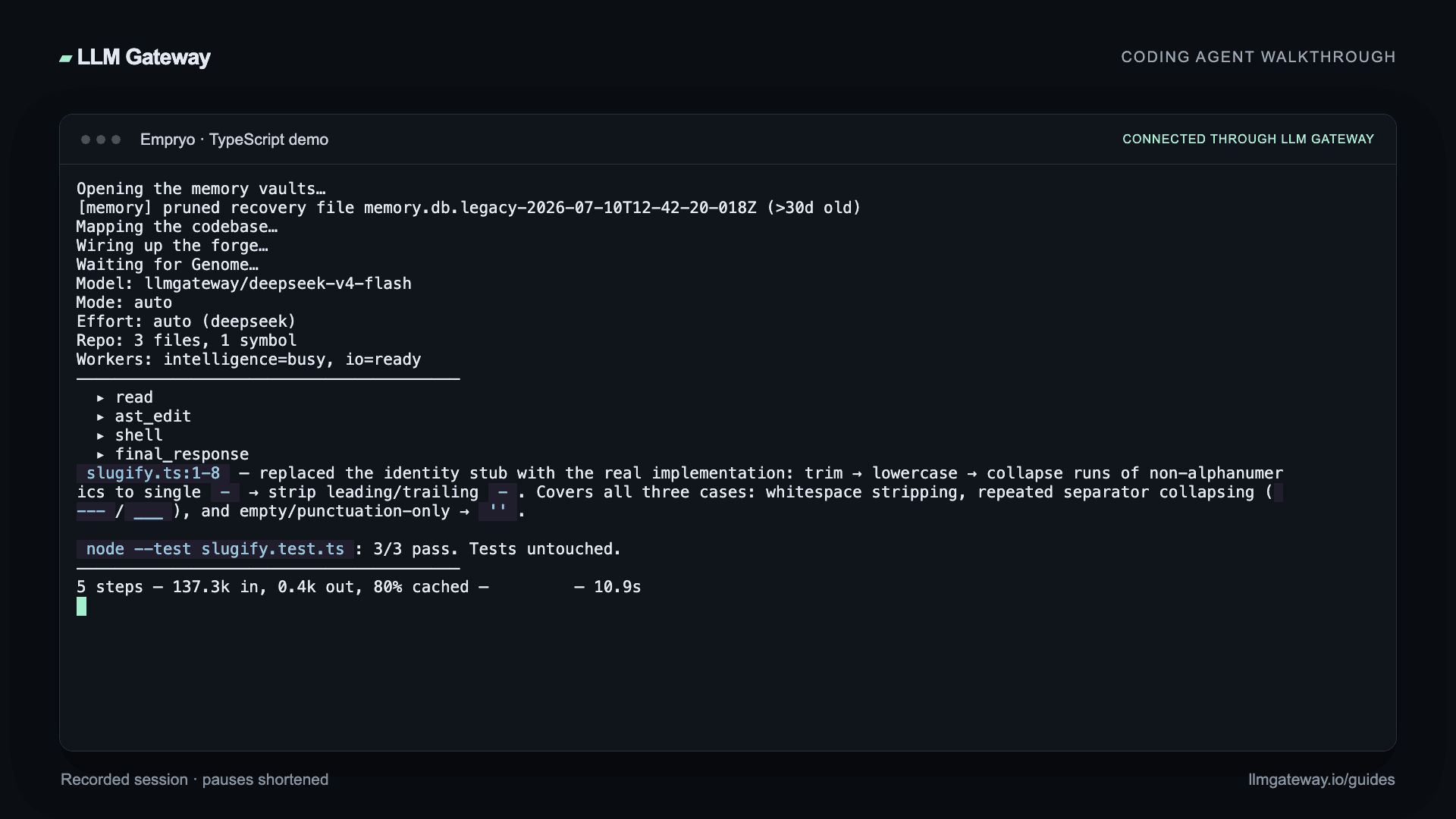
Video walkthrough
Install
Use the official installer or release downloads, then verify the installed version:
1empryo --version1empryo --versionDesktop app (GUI)
Download the desktop app from the Empryo downloads page, then open a project folder from the workspace selector.
Connect your account
On first launch, the Connect a model screen walks through Provider, Account, and Model:
- Select LLM Gateway as the provider.
- Choose browser login for pay-as-you-go, or the DevPass login option for a coding plan. In an already connected profile, these actions appear as Reconnect and Reconnect · DevPass.
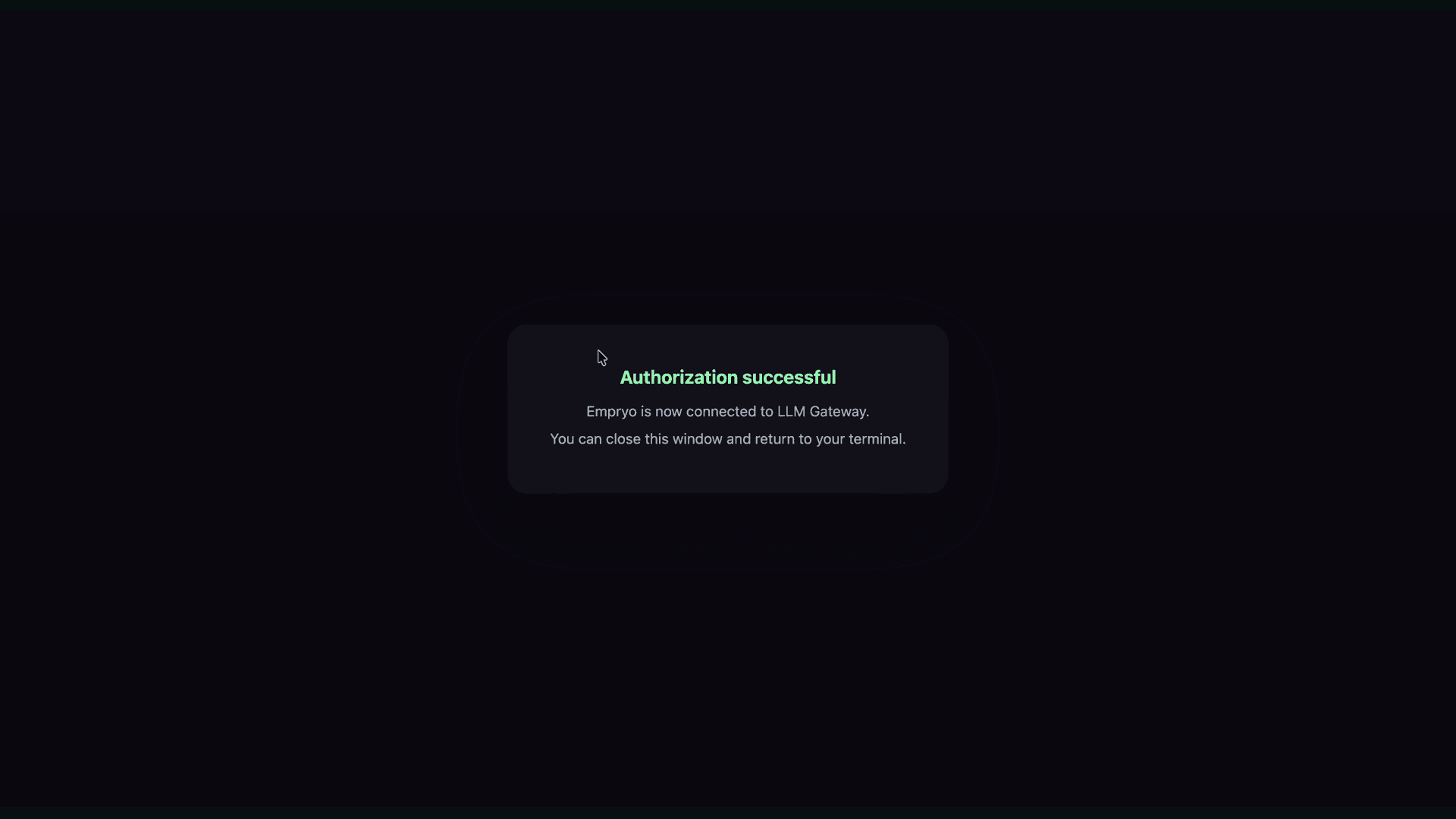
- Finish authorization in your browser and return to Empryo. Keep the app running until the callback completes.
- Choose a tool-capable model and click Start.
To use a key instead, enter it in LLM Gateway API key and click Connect. When both a browser connection and a key exist, the Use control chooses Auto, Connection, or Key. Select the credential matching the workspace you intend to bill.
Work in the desktop app
Use the model selector in the top bar to change models. Enter your task in the chat composer, inspect the file changes, and check the test output before accepting the result. The workspace tree and diff viewer let you review what the agent changed alongside the conversation.
Terminal UI (TUI)
Log in with your browser
Start Empryo in your project:
1cd your-project2empryo1cd your-project2empryoType /login to connect a pay-as-you-go LLM Gateway account. For a DevPass subscription, use /login llmgateway-devpass.
The agent opens the gateway's authorization page in your browser. Check the account and project, then approve the connection. Approval creates an API key and returns it to Empryo through a local callback. Keep the terminal running until the callback finishes.
You can start the same flow directly from the shell:
1empryo --login llmgateway2# For a DevPass subscription:3empryo --login llmgateway-devpass1empryo --login llmgateway2# For a DevPass subscription:3empryo --login llmgateway-devpassIf the browser reports an active-key limit, manage your organization's API keys in the dashboard before starting the login flow again. If the local callback expires, restart login to get a fresh authorization link.
Choose a model
Open /models and select a compatible model under LLM Gateway. The picker reads model information from the gateway; use the live catalogue to check current capabilities.
The leading llmgateway/ in Empryo's model selector identifies the agent's provider. For DevPass, keep the remaining model ID canonical; do not pin an upstream provider.
Use an existing API key
For scripts or an existing gateway credential, export the key before starting Empryo:
1export LLM_GATEWAY_API_KEY="your_api_key"2empryo1export LLM_GATEWAY_API_KEY="your_api_key"2empryoEmpryo uses LLM_GATEWAY_API_KEY, including the underscore between LLM and GATEWAY. You can also enter a key through /keys.
A browser login issues a new credential; it does not reuse a key you already copied from the dashboard.
Verify the connection
In either interface, ask the agent to read a file, make a small edit, and run the project's tests. Review both the diff and test output; a completed chat response alone does not prove the change works.
For a headless task, replace MODEL_ID with a tool-capable model from the live catalogue:
1empryo --headless --model llmgateway/MODEL_ID \2 "Fix the failing test and run it again"1empryo --headless --model llmgateway/MODEL_ID \2 "Fix the failing test and run it again"Review the diff and test output, then check the request in your dashboard. Empryo tags gateway requests with x-source: empryo for attribution.
See the Empryo documentation for additional desktop and terminal controls.